Starting with 22 August 2017 Wayfare has implemented Remote Authentication Dial – in User Service (RADIUS) which means there are only two wi – fi network connections available within Wayfare:
IT Internal Procedures

Learn more about our internal policies and procedures.
Summary
1
How to use Wayfare WIFI networks
This procedure was created to know how to use Wi-fi Wayfare networks: Wayfare - Guest and Wayfare Wifi
2
How to report any IT issues
This procedure was created to know how to report any IT issues
3
How to remotely connect to your Workstation
This procedure has been created to help Wayfare employees to work from outside the office (delegations, collaborators, working from home, emergencies, etc.)
4
And many more
How to create and manage GitLab accounts, etc.
How to use Wayfare Wi-fi networks
Wayfare - Guest
- Available for all equipment that is not in the ``wayfare.local`` domain, ex.: guest laptops; mobile phones, tablets and personal laptops; Any device that can connect to a wireless network and is not in the Wayfare domain will be able to use this Internet access connection on Wayfare, both AB34 and C13.
- Does not allow access to internal Wayfare information.
Wayfare Wifi
- Available for connecting devices belonging to the domain ``wayfare.local`` - no other device will be able to connect to this network unless it belongs to the domain.
- Connecting to this wireless network can be done using the domain account username and password.
- Allows access to the Internet and Wayfare domain resources.
How to report any IT issues??
Any IT related issues will be communicated via e-mail to sysadmin@wayfare.ro. Please provide in the email as many details as possible to describe your encountered problem. After your request is received, you will be contacted directly via MS Teams for further steps.

How to book resources through WayDesk
Meeting rooms and desks can be booked through WayDesk.
Please be mindful and only book when you know you will be at the office.
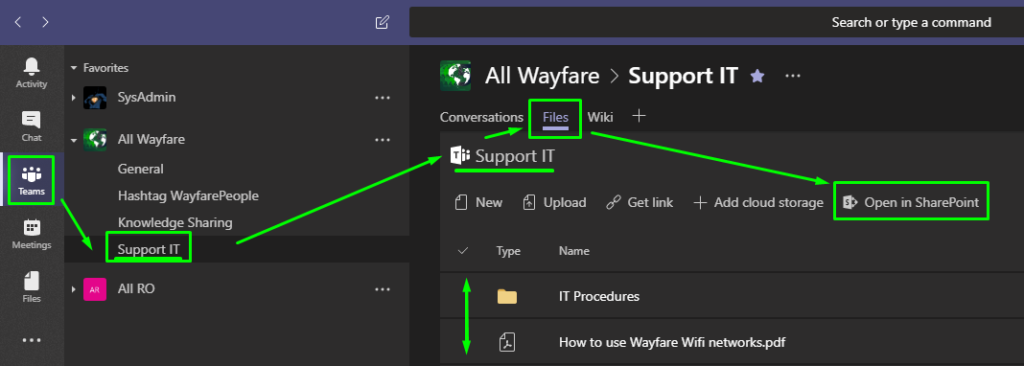
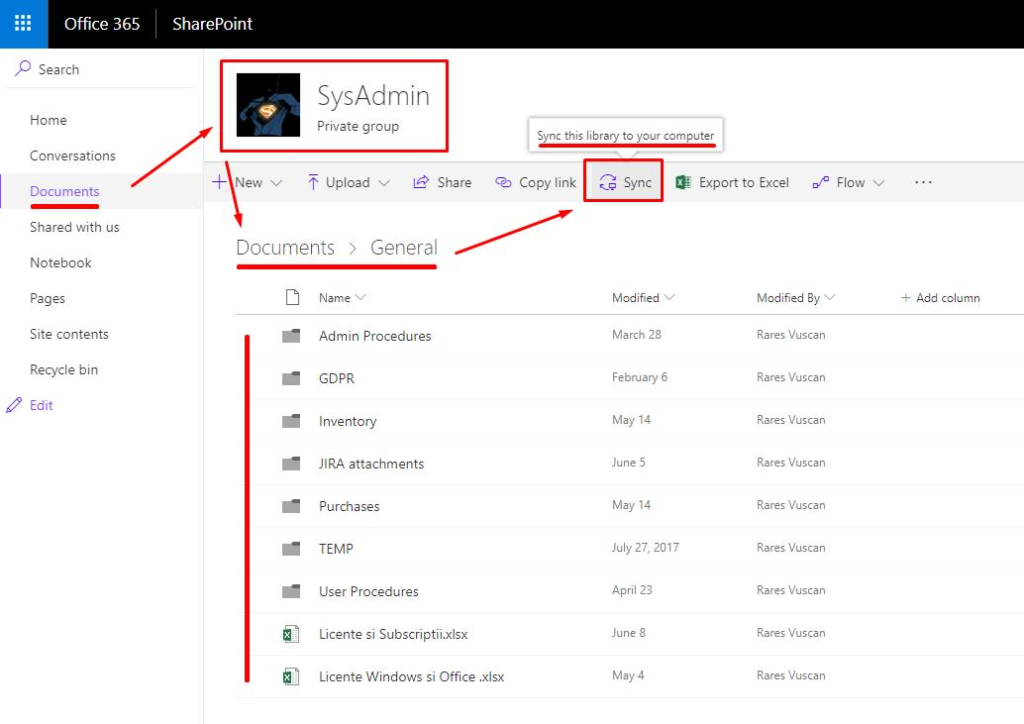
How to sync data between Microsoft Teams and your Workstation
This procedure has been created to help Wayfare employees to work (create/edit) from their workstation with files shared in Microsoft Teams.
1. Microsoft Teams
Open Microsoft Teams application from your workstation or O365 account
If Microsoft Teams application is missing from your computer Download Microsoft Teams application.
2. Office365 – SharePoint - OneDrive
If you’re not logged in to OneDrive “Open Microsoft OneDrive?” message pops up – Click on “ Open Microsoft OneDrive ”. It is safe to tick “Always open these types of links….”
Configure your OneDrive sync folder to a different partition then the Windows (operating system) is running – for e.g. select Partition D if Windows is installed on Partition C
Read the following instructions and click on “ Open my OneDrive folder ” to check if files are syncing